
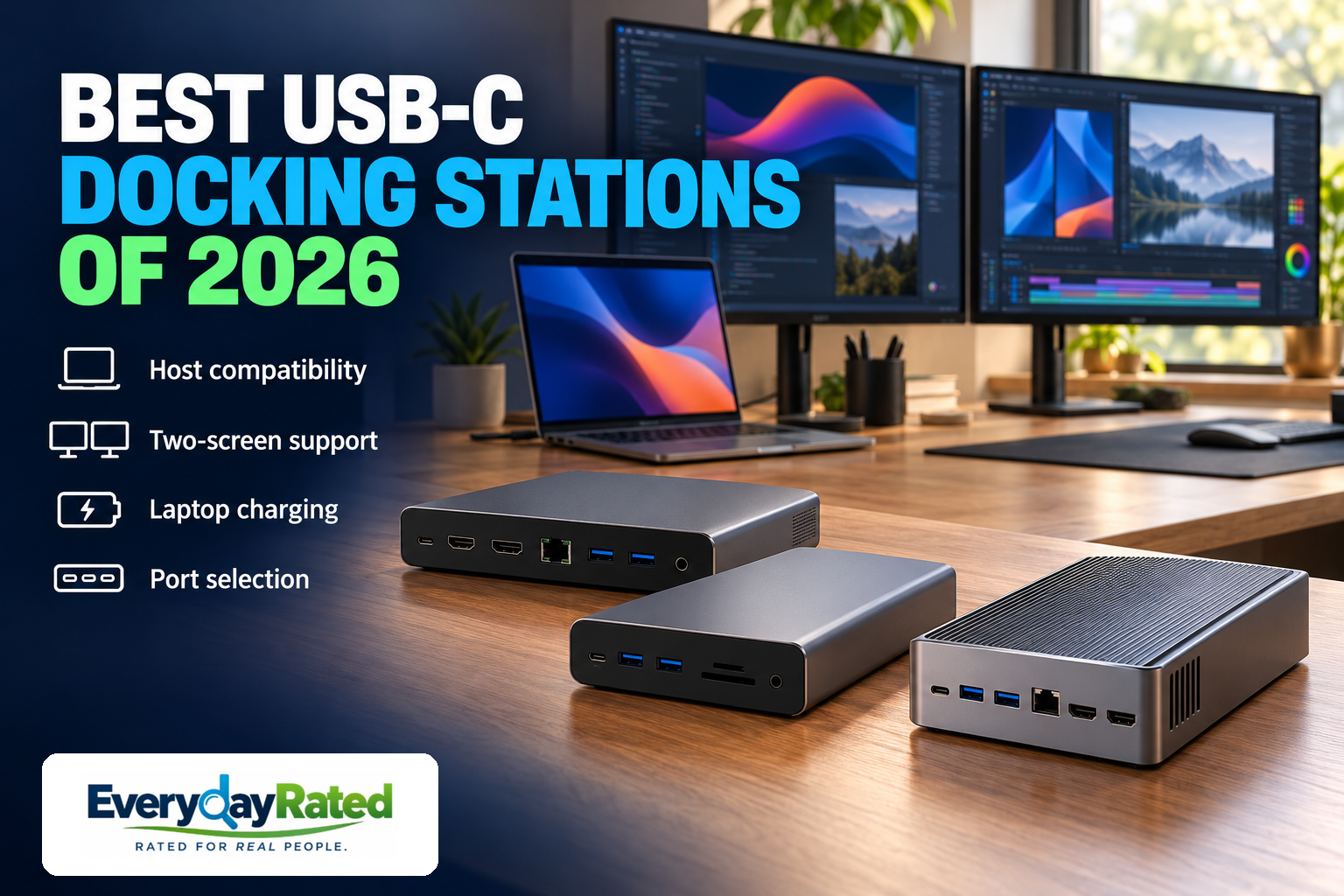
The best USB-C docking stations for two monitors make the laptop easier to connect, but the right pick starts with the computer. Our Best Overall for Office Work is the Plugable UD-6950PDH, provided you can install DisplayLink software and accept its media limitations. The Plugable UD-MSTHDC is the value choice for compatible Windows and Chromebook hosts; the CalDigit TS5 Plus is a premium native-video option for supported workstations, currently with stock caveats.
This 2026 research guide covers powered desktop docks for two independent external screens. We compare software requirements, host compatibility, charging and the real cost of connecting your existing monitors. Thunderbolt docks use the same USB-C connector shape, so we include one while making its stricter requirements clear. A matching plug is not a compatibility certificate.
Quick Answer: USB-C Docks for Two Monitors
Start here: Need two screens on a supported one-display MacBook for documents? Consider UD-6950PDH. Have a compatible Windows/ChromeOS laptop and want native video for less? Start with UD-MSTHDC. Need premium storage and network connections too? Consider TS5 Plus after confirming host support and stock.
Before buying, write down your exact laptop model, operating system, both monitor resolutions and refresh rates, monitor inputs, and charger wattage. Then verify two extended screens over one host cable. “Dual display” can otherwise turn into a very expensive mirror.
Plugable UD-6950PDH
4.3 / 5
About $200 ($199.99 listed)
Productivity desks, especially Macs limited to one native external display
Plugable UD-MSTHDC
4.2 / 5
About $166 ($165.99 listed)
Compatible Windows and ChromeOS laptops needing native dual-screen video
CalDigit TS5 Plus
4.1 / 5
About $500 ($499.99 listed); checked direct and B&H listings out of stock
Supported Thunderbolt/USB4 workstations with demanding storage, networking and power needs
How We Evaluated
Last reviewed: October 2026. These are research-based editorial assessments, not hands-on EverydayRated test results. We checked current U.S. model pages, purchase destinations, official compatibility guidance and original professional reviews. Historical reviews inform usability and performance evidence; current manufacturer guidance governs today’s compatibility claims.
Our consistent rubric weights dual-display suitability and performance evidence at 30%, compatibility and setup at 25%, everyday connections and charging at 20%, support and reliability evidence at 10%, and total cost/value at 15%. Ratings consider the stated buyer, with real deductions for software, power, platform and stock limits. They are rounded editorial judgments, not laboratory measurements or a calculated failure-rate ranking.
We considered older Thunderbolt 4 docks and newer Thunderbolt 5 options. Paying more for Thunderbolt is justified when native video or demanding peripherals matter; it does not automatically improve a spreadsheet desk. We found no comparable long-term failure dataset across these three models. Return-window checks remain more useful than treating a brand reputation as a reliability measurement.
Dual-Monitor Docking Stations at a Glance
| Dock / editorial score | Display approach | Host power | Most important catch | Checked U.S. price |
|---|---|---|---|---|
| Plugable UD-6950PDH 4.3/5 | DisplayLink; up to 2 × 4K/60Hz | Up to 100W | Software required; protected-video limitations | About $200 ($199.99 listed) |
| Plugable UD-MSTHDC 4.2/5 | MST; up to 2 × 4K/60Hz on supported DP 1.4 hosts | Up to 60W | Windows/ChromeOS only; host bandwidth matters | About $166 ($165.99 listed) |
| CalDigit TS5 Plus 4.1/5 | Native Thunderbolt video; two displays on supported hosts | Up to 140W | Host restrictions, adapters and stock limits | About $500 ($499.99 listed); checked direct and B&H listings out of stock |
Maximum figures are manufacturer specifications, not guaranteed simultaneous results on every laptop. Prices exclude tax and extra adapters; availability can change. [1] [2] [3] [4]
1. Plugable UD-6950PDH
EverydayRated score: 4.3 / 5
Key specifications: DisplayLink; two external displays up to 4K/60Hz; HDMI or DisplayPort per screen; up to 100W host charging; 5Gbps USB data
For email, spreadsheets, reference documents and a browser that has developed a tab habit, the UD-6950PDH is our most broadly useful office recommendation. Its value is a practical route to two extended desktops across supported systems, including some Macs whose native display support would otherwise stop at one. It is a conditional Best Overall: choose it for office productivity when installing DisplayLink is acceptable. [1]
The current U.S. listing specifies two 4K displays at 60Hz and up to 100W laptop charging. Choose one video connection for each display group; the four rear video sockets are connection choices for two screens, not a four-monitor promise. A buyer with HDMI monitors can avoid making the whole purchase depend on a bag of adapters. Confirm the exact current unit and operating-system requirements before ordering. [1]
Macworld’s original review appreciated its connection flexibility but highlighted modest USB bandwidth and unequal card-reader speeds. Those are useful limits for a desk that doubles as a media workstation: peripherals and document work are a better fit than expecting a fast external SSD to behave as though it were attached directly to Thunderbolt. That review is evidence about the reviewed hardware, not a controlled endurance study or proof that every later revision behaves identically. [5]
Software and streaming trade-offs
The biggest ownership cost may be setup rather than money. DisplayLink requires software; a managed work laptop may need IT approval. Protected streaming video is a separate limitation: Plugable says HDCP-protected content is unsupported on its DisplayLink outputs, and on macOS playback can remain blocked on other screens while a DisplayLink display is active. This is a reason to pick native video if entertainment shares your desk. [1] [6]
We would buy this for a mixed productivity setup after checking software permissions and monitor inputs. We would pass if gaming, protected streaming or precise motion handling dominates the workload. Plugable advertises two-year defect coverage and lifetime support; neither establishes a measured failure rate. Try your full workday setup, including sleep and wake, while the seller’s return window is open. [1]
Pros
- Useful workaround for some one-display Macs
- HDMI/DisplayPort flexibility for two screens
- Up to 100W host charging and useful office connections
Considerations
- DisplayLink software and permissions required
- Protected-video restrictions; poor fit for gaming
- 5Gbps USB data limits fast-storage appeal
Why We Picked It
The 4.3/5 editorial score rewards broad office usefulness and sensible cost. Software friction, media restrictions and modest data bandwidth prevent a higher rating.
2. Plugable UD-MSTHDC
EverydayRated score: 4.2 / 5
Key specifications: MST native video; up to dual 4K/60Hz on supported DP 1.4 hosts; 60W charging; HDMI/DisplayPort choices; no DisplayLink software
The UD-MSTHDC is the better-value starting point when the laptop already supports the native display connection this dock needs. It uses Multi-Stream Transport, or MST, to send separate video streams through the host’s USB-C display connection. For supported Windows and Chromebook systems, that avoids adding DisplayLink software just to run the desktop. [2] [7]
Plugable currently lists it around $166 with 60W charging and Works With Chromebook certification. The dual-4K/60Hz claim is conditional on the computer: its FAQ separates DisplayPort 1.4 hosts from DisplayPort 1.2 hosts, for which it lists dual 1080p/60Hz. Treat that distinction as a shopping requirement. Ask support about the exact laptop and two monitor models if the laptop specification sheet is vague. [2] [7]
The physical hookup is refreshingly practical. Each display group offers HDMI or DisplayPort; connect one screen to each group. This lets buyers keep monitors with different inputs without assuming every port can be active at once. It is a useful feature for an existing desk, where replacing perfectly good screens just to match the dock would erase the savings. [2]
Charging and platform limits
The lower charging allowance matters more than the modest price difference. Compare 60W with the laptop’s recommended supply and USB-C charging support. A machine that needs more power for sustained work may still need its original charger, which weakens the one-cable attraction. Someone with a modest office laptop may have no reason to pay for a much larger power budget. [2] [7]
This is not our Mac recommendation: Plugable marks the model incompatible with Macs, and macOS does not provide the independent MST desktop arrangement this use case requires. We did not find a controlled independent performance test of this exact dock in the reviewed evidence, so its score rests on documented capabilities and value rather than claimed measured superiority. The advertised two-year coverage helps define support expectations, but cannot settle long-term reliability. [2]
Pros
- Lower checked price than the other picks
- Native video on compatible Windows/ChromeOS hosts
- One HDMI or DisplayPort choice for each screen
Considerations
- Not a Mac dual-extended-display solution
- 60W charging may leave a second power cable necessary
- Dual 4K/60Hz depends on host display capabilities; limited independent evidence
Why We Picked It
The 4.2/5 score reflects useful native video and lower cost. Narrower platform suitability, 60W power and limited exact-model testing constrain the rating. For a compatible Windows desk it can be a better buy than our overall pick.
3. CalDigit TS5 Plus
EverydayRated score: 4.1 / 5
Key specifications: Thunderbolt 5; 20 ports; up to 140W host charging; 10GbE; DisplayPort 2.1 plus downstream Thunderbolt video; HDMI adapters extra
The TS5 Plus belongs on a desk where two monitors are only the beginning. Its premium case is fast storage, high-power charging and serious wired networking alongside the screens. Buying it solely for a pair of ordinary office monitors spends heavily on capabilities that may sit idle. We include it as a specialist recommendation, with an availability exception rather than an immediate-purchase promise.
CalDigit specifies 20 ports, up to 140W host charging and 10GbE networking. The display path is native video: use DisplayPort plus a downstream Thunderbolt video connection, or two downstream video connections. There is no built-in HDMI socket, so common HDMI displays need suitable adapters. Budget those before comparing the sticker price with either Plugable. [3] [9]
Published testing supports the workstation argument. TechRadar’s original benchmarks found very similar SSD read performance through the dock and a direct connection in its particular test configuration. Digital Camera World also reported strong USB transfer performance in its own review. These findings support useful throughput under those setups; they do not prove a universal speed, flawless dual-screen wake behavior or years of reliability. [8] [13]
Host compatibility and buying costs
The connector shape is a particularly dangerous shortcut here. CalDigit excludes ordinary 5Gbps/10Gbps USB-C hosts and Thunderbolt 3 Windows PCs. Supported Thunderbolt 4 or USB4 connections do not deliver every Thunderbolt 5 feature. Native video also remains subject to the computer’s display limits; this dock is not a DisplayLink workaround for a base M1 or M2 MacBook. [3] [9]
Availability tempers this recommendation. At review, CalDigit’s U.S. store showed out of stock, and B&H listed the exact TS5 Plus at $499.99 with temporary unavailability and an estimated December 16, 2026 arrival. Estimates can move. The Check Price link is an exact-model stock-check destination, not a claim that immediate ordering or delivery is available. If you need a dock this week, choose an available compatible alternative instead. [4] [12]
Keep the receipt and verify warranty coverage for your model and seller. CalDigit’s general policy gives a model-dependent 12–24-month range, so we do not convert that into an unverified exact TS5 Plus term. Its strong specification sheet earns interest, but cost, host restrictions, adapter expense and present stock limits keep it behind the office-focused picks for this particular buying decision. [11]
Pros
- Strong published storage-performance evidence
- High charging ceiling and extensive connections
- 10GbE can serve an appropriately equipped local network
Considerations
- About $500 plus possible monitor adapters
- Unavailable at both checked U.S. destinations
- No ordinary USB-C-host support; no Thunderbolt 3 Windows support
- Unnecessary spending for many two-monitor office desks
Why We Picked It
The 4.1/5 score uses the same everyday buying rubric: impressive capability is offset by price, compatibility hurdles and stock limits. It is the premium use-case winner, not a universal upgrade.
Buyer’s Guide: Choose the Video Path Before the Port Count
1. Match the laptop’s actual display support
USB-C names the connector. The laptop manual tells you whether that port carries native video, Thunderbolt, USB4 and charging. Native USB-C video generally uses DisplayPort Alt Mode; MST can split that stream on supported Windows and ChromeOS systems. DisplayLink instead creates additional displays through USB graphics software. These approaches solve different problems. [2] [7]
Mac buyers must check the exact chip and model. Apple’s current MacBook Air guidance distinguishes M1/M2, M3 and newer models: base M1/M2 Air models support one native external display; M3 supports two with its lid closed; M4 supports two alongside the built-in display. Do not apply a Pro/Max-chip claim to a base-chip laptop. Also verify that a proposed dock can deliver those screens through a single connection. [10]
If this is part of a wider desk upgrade, our office gadgets buying guide helps prioritize the changes that solve your actual workday problems. Buy the dock around the laptop you own, unless a replacement computer is already planned.
2. Ask for the simultaneous resolution and refresh rate
A 60Hz screen refreshes 60 times per second. A listing that says “4K” without the refresh rate and number of active screens leaves the important part unanswered. Ask for both monitors at their intended settings at the same time, including the laptop’s own display if you plan to keep it on.
For the UD-MSTHDC, the documented DP 1.2 versus DP 1.4 distinction can change the result from dual 1080p/60Hz to dual 4K/60Hz. For higher-refresh Thunderbolt setups, host graphics, available bandwidth, adapters and display compression support can all matter. A single-display headline maximum does not establish a dual-display result. [7] [9]
For gaming or editing where motion and display behavior matter, begin with a native video path and verify the exact target resolution, refresh rate and relevant display features. Do not assume office-oriented DisplayLink and a native GPU connection are interchangeable. A modest pair of 1080p office screens rarely justifies buying the largest number printed on the box.
3. Budget charging and the hidden cable bill
Compare the dock’s host-charging output with the laptop’s own recommended charger. The power-brick wattage is not the same as the power available to the laptop. “Up to 100W” also does not force a laptop to accept 100W, and a machine using proprietary charging may need its original adapter.
Count every purchase: the dock, the correct host cable, both display cables, any active adapters and any power supply sold separately. For TS5 Plus, ordinary USB-C data ports are not substitutes for its downstream Thunderbolt display ports. If you connect an HDMI screen through DisplayPort, follow CalDigit’s active-adapter requirements. [3] [9]
Need to charge a phone or earbuds beside the desk? Our charging stations guide covers that separate job. A wireless charging stand cannot add laptop video outputs, and a dock’s spare USB port is not automatically a fast charger.
4. Plan setup, sleep and your return-window check
Before removing the packaging, check the seller’s return policy and whether the employer permits driver installation. Update the laptop’s supported graphics and system software, use the included or specified host cable, and connect one monitor at a time. Select “extend” rather than “duplicate” in display settings.
Then run a realistic day: wake from sleep, reconnect after taking the laptop away, make a video call, use Ethernet and copy a file while both screens are active. These checks can expose a mismatch that a successful first boot misses. Record which cable and output each screen uses so support can reproduce a problem.
If protected streaming is part of the plan, read the DisplayLink restriction before buying. Plugable’s official workaround is a direct native video connection; on macOS, all DisplayLink displays may need disconnecting. No amount of swapping ordinary HDMI cables removes that technology limitation. [6]
Related Desk & Charging Buying Guides
- Best Office Gadgets of 2026 — plan the rest of a practical workspace.
- Best Charging Stations 2026 — choose a separate phone and accessory charger.
EverydayRated Verdict
Choose Plugable UD-6950PDH for ordinary two-screen office work when DisplayLink is an acceptable solution. Its overall award reflects broad productivity usefulness, not a promise to suit every computer or workload.
Choose Plugable UD-MSTHDC when your Windows or Chromebook host supports the desired native dual-display mode and 60W charging is sufficient. It can save money and software setup. Choose CalDigit TS5 Plus only when your compatible workstation will use its premium connections and you can wait for verified stock.
You may not need a dock if the laptop already has the two video outputs you need, or a monitor’s built-in hub handles your peripherals. The final rule is simple: verify the exact laptop, both monitors and one-cable display arrangement before paying. Fewer cables should not require more surprises.
Sources & Research
- Plugable UD-6950PDH — current U.S. specifications, price, support and purchase options
- Plugable UD-MSTHDC — current specifications, setup, price and purchase options
- CalDigit TS5 Plus — current host compatibility and display connection FAQ
- B&H — exact TS5 Plus TBT5-TS5PLUS-US-AMZ, price and stock status
- Macworld — original UD-6950PDH review, September 2024
- Plugable — DisplayLink protected-video limitations, updated August 2026
- Plugable — UD-MSTHDC manufacturer FAQ
- TechRadar — original TS5 Plus testing, July 2025
- CalDigit — TS5 Plus manual and host requirements
- Apple — MacBook Air external-display support by model
- CalDigit — warranty policy and claim requirements
- CalDigit U.S. — TS5 Plus direct-store listing
- Digital Camera World — original TS5 Plus review, January 2026